
Table of Contents
Welcome Page - Highlights
Introduction
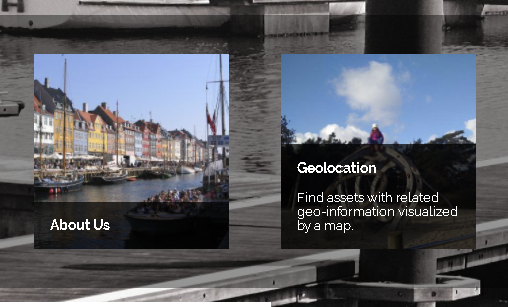
The welcome page can show boxes with an image in the background and some text in the foreground.
Setup
Add the required fields to the data model by clicking the Prepare button after activating the feature in AWP's configurator and selecting the object type which should provide the content for the highlights. Add the following fields to a mask to be able to edit the data: awp_wph_image, awp_wph_title, awp_wph_description, awp_wph_order, awp_wph_link.
Configuration
Set the wanted image as asset for the awp_wph_image field. It's shown in the background of the box.
Edit the awp_wph_title field for the header line within the box and the awp_wph_description field for the text below the header which is shown when the user hovers the box with a mouse.
The field awp_wph_link contains the link AWP jumps to when the user clicks the box.
If you want to define a static order of the highlight boxes, you can enter arbitrary numbers into the awp_wph_order field which is then used for sorting the boxes accordingly.
Multiple Languages
To support multiple languages with highlight boxes, edit all the wanted languages for the awp_wph_title and awp_wph_description fields. AWP will check whether text is available for the current language the user has selected in AWP.