
Table of Contents
Workflows
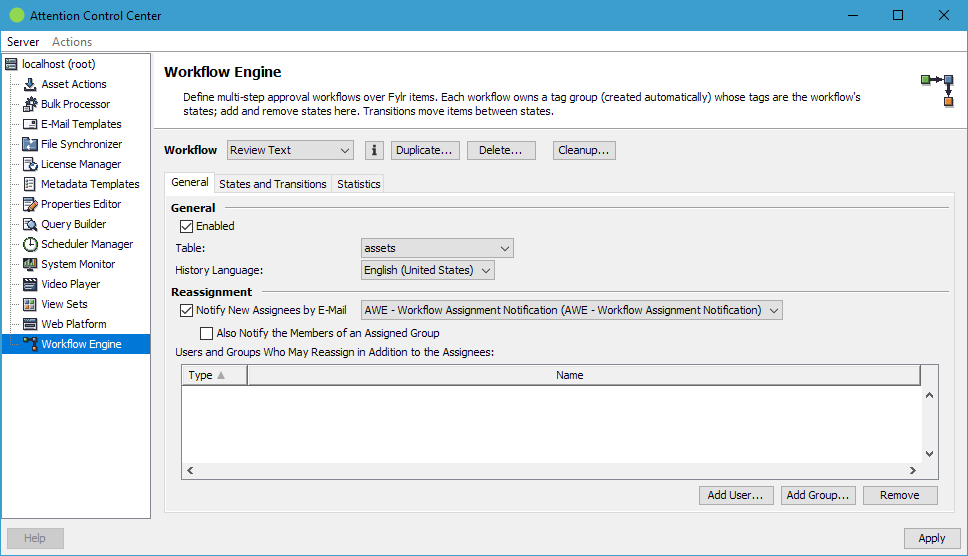
The configuration takes place in ACC. After logging in, select the Workflow Engine node on the left.
Management
A workflow is picked in the chooser of the management toolbar. New workflows are created with the Duplicate button, the Delete button removes the currently selected one and the properties button beside the chooser edits the workflow's localised name and description.
Deleting a workflow, or pointing it at a different table, permanently discards the assignments, due dates and transition history of every item currently in it, and leaves their state behind on the old table. ACC reports how many items are affected and asks for confirmation before either change.
The Cleanup… button lists the workflow data no workflow claims any more — the states, assignments, due dates and history a deleted or re-targeted workflow left behind. Each entry shows how many items still use it. Removing an entry is permanent and takes its audit trail with it. Save pending workflow changes first, otherwise the data of a workflow that was not saved yet is listed as unclaimed.
General
| Configuration | |
|---|---|
| Enabled | A disabled workflow is invisible to every user interface and none of its transitions can be applied. Its items keep their state, assignments and history. |
| Table | The Fylr table the workflow runs on. All states, transitions, assignments, due dates and the history live on this table. |
| History Language | The language the workflow writes into the history: the transition and user names recorded on an item. One fixed language rather than the language of whoever applied the transition, so the audit trail stays readable and searchable. Text addressed to a person — rejection messages and notification e-mails — always follows that person's own Fylr frontend language instead. |
| Reassignment | |
|---|---|
| Notify New Assignees by E-Mail | Sends the assignment e-mail to the new assignees after a reassignment, see E-Mail Notifications. |
| E-Mail Template | Which template to send. Only offered when more than one AWE assignment template exists; with exactly one it is used automatically. |
| Also Notify the Members of an Assigned Group | Expands an assigned group to its members when sending. Off by default — a single group assignment can turn into any number of e-mails. |
| Users and Groups Who May Reassign in Addition to the Assignees | Workflow managers who may hand any item of this workflow over to somebody else, filled with Add User… and Add Group…. The current assignees of an item may always reassign it, and an unassigned item may be claimed by anybody, so this list only adds rights. An empty list means “no managers configured”. Reassignment must additionally be allowed on the state the item is in, see States. |
States and Transitions
The second tab holds the two tables that make up the state machine: States on top, Transitions below. Both offer Add…, Delete… and Properties….
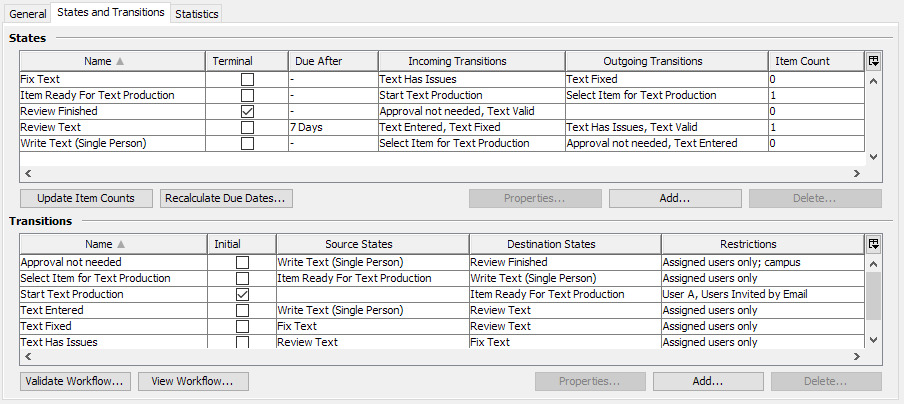
The states table shows for every state whether it is terminal, its due period, the transitions that lead into and out of it by name and, on demand, its item count — Update Item Counts fetches the counts, which is why they are not shown right away. Recalculate Due Dates… re-stamps the deadline of every item from the moment it entered its current state — needed after a state's due period was changed or removed, because a deadline is otherwise only written when an item moves. It refuses to run while the workflow has unsaved changes.
Below the transitions table:
| Action | |
|---|---|
| Validate Workflow… | Reports every problem found in the current definition: missing target table or states, no initial transition, transitions without a valid source or destination, restrictions that nobody can satisfy, states no transition path reaches, dead ends that are not marked terminal, notification settings that can never send, and actions that are not installed on this server. Run it after every change. |
| View Workflow… | Draws the state machine: one box per state, one arrow per pair of states, starting at Start with the initial transitions. Hovering an arrow lists that transition's restrictions and its assignment effect, hovering a box shows the state's description. |

The drawing carries the configuration in its shapes and colours:
| Element | Meaning |
|---|---|
| Blue arrow | An ordinary step forward. |
| Red arrow | A step into an end state — nothing leads out of it again. |
| Amber arrow | A step back to an earlier state, i.e. a rejection or re-open loop. |
| Grey dashed arrow or box | A transition nobody can apply, or a state no path reaches. |
| Double outline | A terminal state. |
| Padlock | The transition is restricted to certain users or groups. |
| Funnel | The transition only applies to items matching a query. |
| Clock | Items entering this state get a deadline. |
Problems found by the validation are marked on the arrow they belong to, except for the checks that need to contact the server — the Validate Workflow… report stays the complete list.
Statistics
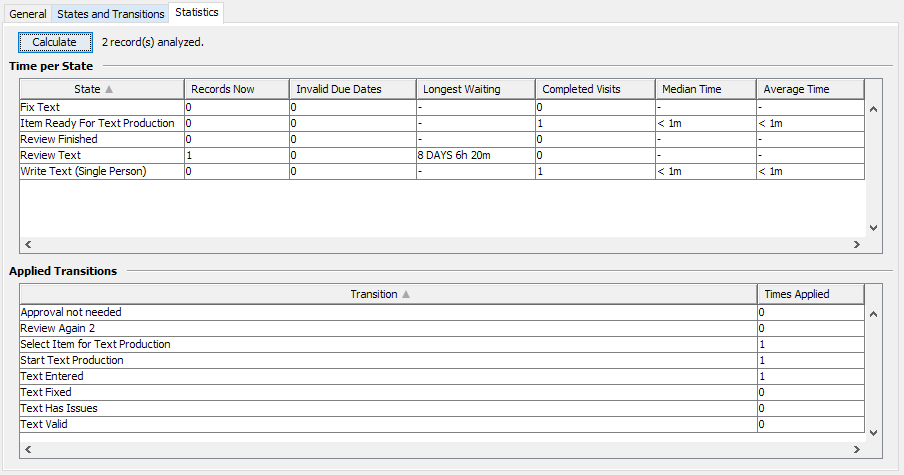
The third tab derives, from the recorded history of every item in the workflow, how the work actually flows. It is calculated on demand with the Calculate button and covers all items of the workflow, so it is an analysis to run when needed, not a live dashboard.
| Time per State | |
|---|---|
| Records Now | How many items are in the state right now. |
| Invalid Due Dates | Items whose stored deadline does not match what the current configuration would produce — exactly the items Recalculate Due Dates… would rewrite. Left empty while the workflow has unsaved changes. |
| Longest Waiting | Age of the item that has been sitting in the state the longest. Empty for a terminal state, where every finished item rests. |
| Completed Visits | How often an item entered and left the state. A state can be visited more than once when the workflow contains rejection loops, and each visit counts separately — the visit count is itself the rework signal. |
| Median Time / Average Time | How long a completed visit takes. Both are shown because approval times are skewed enough that the average alone misleads. Items currently in the state are not counted, otherwise they would drag the average towards zero. |
| Applied Transitions | |
|---|---|
| Times Applied | How often each transition was applied, over the whole recorded history. |
Because the numbers come from the recorded history, items that entered their state before the workflow started recording history are not counted, and a history that was edited by hand changes the result.