
Table of Contents
Plugins
Installation
After the first login no plugin has been installed yet therefore you are greeted with an empty list:
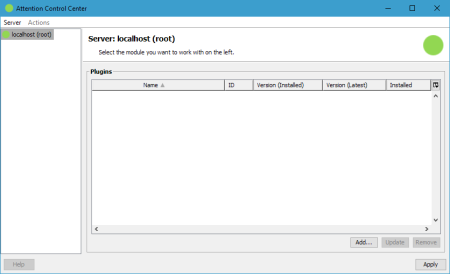
Clicking the Add button allows you to install a plugin from local storage, for example some plugin developed especially for a customer, or from the global ACC plugin registry:
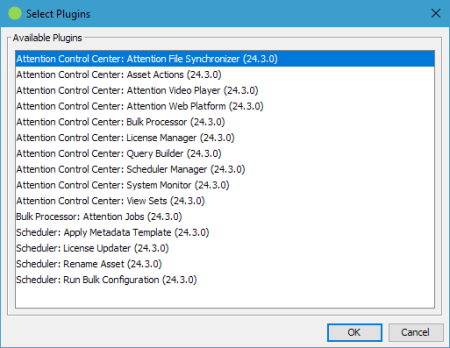
Select the plugins you are interested in to download and install them when clicking OK. Always needed is the Attention Control Center: License Manager plugin which manages the license data for all Attention products.
After a successful installation, click Apply to save the changes and reconnect ACC to the Fylr server to run the installed plugins.
Update
ACC renders the plugin's name in italic in case it detects that a newer version for that plugin is available. To update a plugin select the item in the list and click the Update button. You can also install updates with the Add button as updateable versions are also listed there.
After a successful update, click Apply to save the changes and reconnect ACC to the Fylr server to run the updated plugin.
Removal
To uninstall a plugin just select it in the list and click Remove.
After a successful removal, click Apply to save the changes and reconnect ACC to the Fylr server to work with a clean environment.
Custom Plugins
The ACC defines a public FylrJavaClasses API that can be implemented by any Java developer to extend the available plugins.