
Table of Contents
View Sets
Introduction
Each View Set contains a list of fields for some tables which is used by AWP for example to configure the visible metadata. This is a very lightweight approach to avoid all the options Fylr masks are offering if not needed.
Management
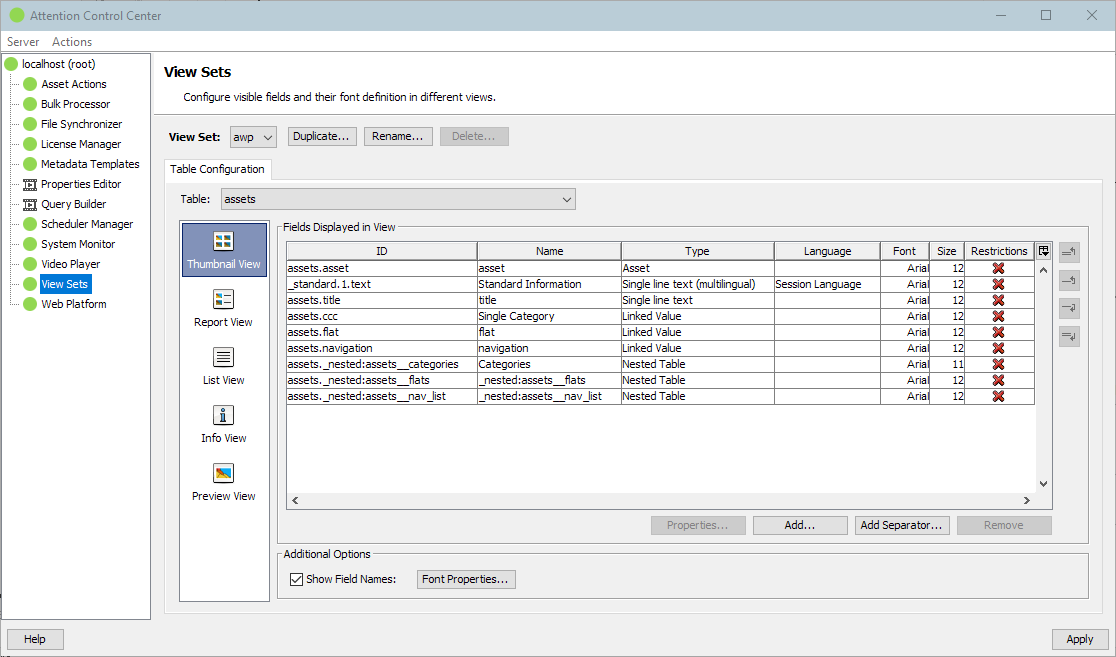
The top management button bar offers buttons to create, rename and delete stored View Sets.
Configuration
Start by either creating a new View Set or by selecting an existing one. Next select the table you want to configure the View Set for.
Select the view you want to change the fields for as each table can store the configuration for multiple views.
Click the Add button below the field list to add another field to the list. Click Add Separator for a separator with a title. It depends on the application using the View Set how the separator is displayed. The Remove buttons removes all selected fields from the list. Additional options of selected fields can be configured with the Properties button.
Each field has a font configuration including font size, style and color.
The language column specifies the language to use in case of a multi-lingual text field. This can either be a hard-coded language or with Session Language adapt dynamically to the language the user is using with the target application using that View Set. To show different languages of the same field, just add the field multiple times and configure a different language for each occurrence. AWP appends the language code to the field name of such occurrences, for example Description (EN), so the displayed values can be told apart.
Depending on which view is selected the field properties might offer additional options, for example that a field is only visible for an item if that item matches the configured query or if a certain user is using that View Set. This could be used to show image metadata fields only for image assets or limit internal fields to members of an administrative Fylr group.
Some of the views also have some additional global options to choose from, for example you can choose to hide empty field values when using the Info View.