
awp:useraccounts
User Accounts
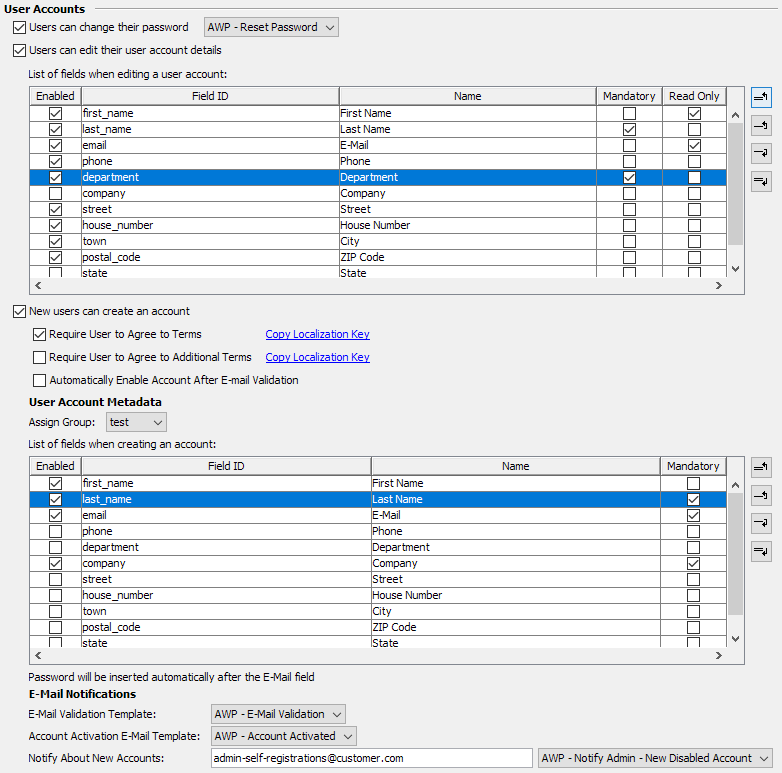
| User Accounts | ||
|---|---|---|
| Users can change their password | Allow users to reset or change their password. The option to change the password is offered in the user's metadata dialog and in case they typed the password incorrectly when trying to log in. The form requesting the password reset e-mail is protected by a captcha, see below. |
|
| Users can edit their user account details | Enable to allow users to edit their account information. This also allows users to change their password if the Reset Password feature is enabled as well. | |
| Field list | Configures the fields the users should be able to update. The order of the fields can be changed as needed but a field is only shown if it's enabled. The mandatory column specifies whether a field must be filled by the user. A field can also be marked as read-only to display the stored information but don't give the user a chance to edit the data. | |
| New user can create an account | Enables the self-registration of users. The registration form is protected by a captcha: the browser solves a small computational task (ALTCHA proof-of-work) before the form can be sent, which makes mass registrations by bots expensive. It needs no configuration, sends no data to third parties and sets no cookies. The browser must open AWP via HTTPS (or localhost) for the captcha to work. The registration form always confirms that a validation e-mail has been sent, also for an e-mail address that already has an account, so the form cannot be used to find out who has an account. The owner of an existing account receives the password reset e-mail instead, if resetting passwords is enabled. |
|
| Require User to Agree to Terms | Some instances require the user to agree to specific terms and conditions. This option enables such a checkbox. The text needs to be defined as a custom entry in each configured language. The key for that entry is awp.web.createaccount.agreement.1 and can also be copied to the clipboard with the Copy Localization Key link. |
|
| Require User to Agree to Additional Terms | In some cases a second checkbox is required, for example to force the new user to explicitly accept GDPR terms. This option also enables such a checkbox. The text needs to be defined as a custom entry in each configured language. The key for that entry is awp.web.createaccount.agreement.2 and can also be copied to the clipboard with the Copy Localization Key link. |
|
| Automatically Enable Account After E-mail Validation | Specifies whether newly created accounts should be immediately able to log in or whether a configured administrator needs to enable the account manually. | |
| Assign Group | Select the group each account is automatically assigned to. | |
| Field list | Configures the fields displayed to the users when creating the account. The order of the fields can be changed as needed but a field is only shown if it's enabled. The mandatory column specifies whether a field must be filled by the user. The E-mail field is always needed as its value is used as login name. The password fields will always be inserted after the E-mail field. The password rules defined in Fylr's base configuration are also enforced. | |
| E-Mail Validation Template | Configures the template to use when sending the e-mail to the self-registering user which validates the e-mail address. | |
| Account Activation E-Mail Template | Configures the template to use when sending the e-mail to the self-registering user after an administrator has activated the account. | |
| Notify About New Accounts | Configure the administrator e-mail address who gets an e-mail for each newly created account using the configured e-mail template. That e-mail also contains the link the administrator has to click to enable the account and trigger the notification e-mail about the account activation. | |
awp/useraccounts.txt · Last modified: by 127.0.0.1