Apply Metadata Template
The Apply Metadata Template scheduler job applies an existing Metadata Template to every item in a Fylr table that matches a configurable search query. The template itself — which fields are set, to which values — is defined in the Metadata Templates admin module; this job only picks one of those templates and applies it on a schedule. Open its configuration via the Scheduler admin module and pick Apply Metadata Template as the job type.
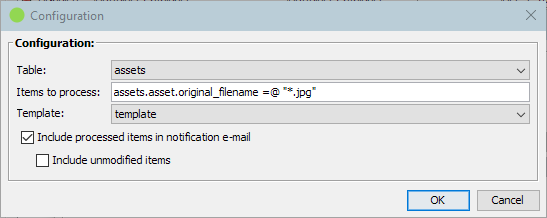
| Items To Process | |
|---|---|
| Picks the items the metadata template should be applied to. | |
| Table | The Fylr table containing the items to process. |
| Items to process | Fylr search query identifying the items on the chosen table. Items matching this query are processed one by one on each run. |
| Template | |
|---|---|
| The metadata template that is applied to every matching item. | |
| Template | The metadata template to apply. The drop-down lists every template configured in the Metadata Templates admin module. Create, edit or remove templates there — this job picks up whatever is currently defined under the selected name. If the selected template no longer exists when the job runs, the run ends with a warning in the scheduler log and no items are modified. |
| Notification | |
|---|---|
| Controls whether the scheduler's run notification e-mail lists the processed items. | |
| Include processed items in notification e-mail | When enabled, the scheduler notification e-mail sent at the end of the run lists every item the template was applied to (display name and item ID). When disabled, the notification e-mail contains no per-item details. |
| Include unmodified items | Only available when Include processed items in notification e-mail is enabled. When enabled, items the template was applied to but did not actually change are listed as well; otherwise the notification only lists items whose values were updated by the template. |
What the job does when it runs
Every time the scheduler triggers the job it:
- Resolves the configured template. A template that no longer exists ends the run with a warning and nothing is modified.
- Searches the configured table with the configured query.
- Applies the template to every item found and saves it.
- Reports an item that could not be processed and carries on with the next one, so a single failing item does not stop the run.
- Collects the notification list, when Include processed items in notification e-mail is enabled, from the items it touched — narrowed to those the template actually changed unless Include unmodified items is enabled as well.