Languages
| Languages | |||
|---|---|---|---|
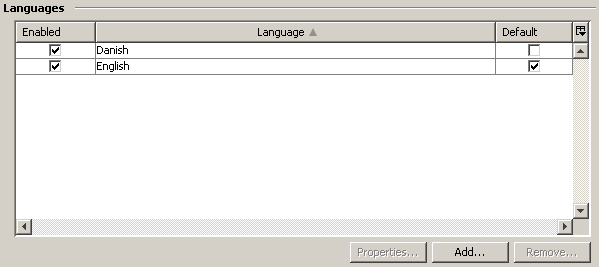
| Add the language(s) you want to make available in AWP and select which language should be default (if unchecked, it will be based on browser language). AWP includes translations for English, Danish and French (For all other languages and for missing translations AWP falls back to English). The settings for the selected language can be modified by opening the Properties dialog of the selected language. |
|||
| General | 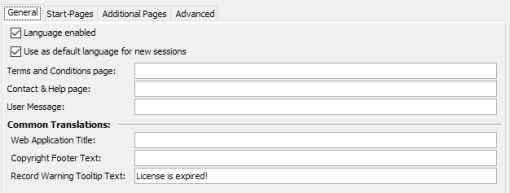 |
||
| Language enabled | Check this to make the language available to users. | ||
| Use as default language | By default AWP detects the browser language and starts new sessions with the matching language from the list of available languages in AWP. Checking this box will start all sessions with this language, ignoring the browsers configuration. | ||
| Terms and Conditions page | Optional setting to override the global Terms and Conditions link when using this language. The built-in page can be configured on the Additional Pages tab. |
||
| Contact & Help page | Optional setting to override the global Contact & Help link when using this language. The built-in page can be configured on the Additional Pages tab. |
||
| User Message | Translation for the user message in this language. This translation is only used when the global user message is enabled. | ||
| Web Application Title | Specify the title text shown in the browser window or tab title. | ||
| Copyright Footer Text | Text to display in the center of the footer. | ||
| Record Warning Tooltip | Tooltip text to display for items where the configured warning boolean field is set. The text supports the Pattern Format. |
||
| Start Pages | 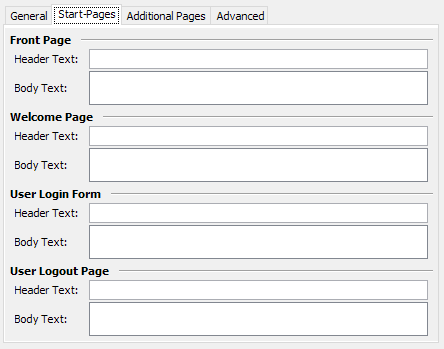 |
||
| This tab presents the main header and body text for all enabled start pages. Each available start page can be customized here as needed. | |||
| Header Text | Large header in the text box. | ||
| Body Text | Text shown below the header in the text box. | ||
| Additional Pages | 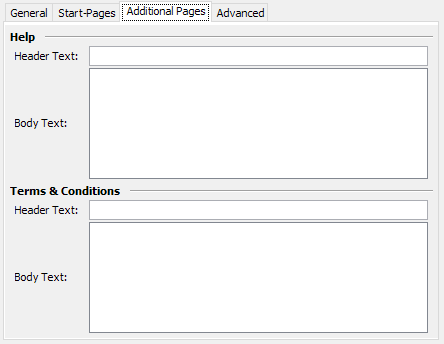 |
||
| This tab presents the main header and body text for additional pages, like Terms & Conditions or Help. If such a page is enabled but no explicit link to an external page is defined, AWP renders internal pages with the text specified on this tab. | |||
| Header Text | Large header in the page rendering. | ||
| Body Text | Text shown below the header in the page rendering. | ||
| Advanced / Custom Translations | 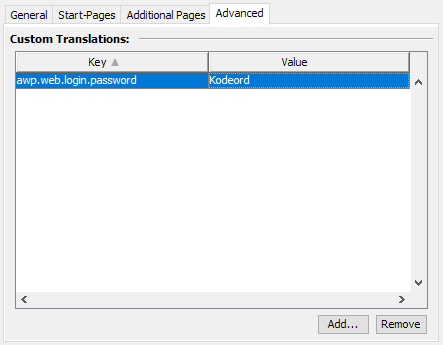 |
||
| Allows you to translate AWP to your liking. To find the keys to translate, you can use the "Translation Mode" customization, which reveals all keys in AWP. Once you have found the key (ignore the ??? around the key), do as shown on the screenshot - insert the key string and the value that should be shown for that key. The translation will be prevailed even when updating AWP! | |||