| Information View |
| Enable Information View | Specifies the availability of the Information View. |
| Allow Thumbnails with Watermark | Uncheck to enforce non-watermarked thumbnails in the Information View even if that rendition is smaller than optimal for the currently required size |
| Remove Active Filters for Item Value Filter | AWP displays a little magnifying glass next to item values to make it easy to find other items having the same value in that field. This option specifies whether AWP should remove all existing filters when the user clicks the magnifying glass which ensures all matching items are found |
| Support Markdown formatting | Enables rendered display of Markdown markup |
| Load Long Text in Chunks | Limits displayed text field value to 1024 characters and adds a Read More link which loads the next 1024 characters when clicked. |
| Field for thumbnail | Specifies the File field to use for the main thumbnail. |
| Map Zoom Factor | Configures the initial zoom level when showing a map in the information view. |
| Enable Top-Info | Configures an additional list of fields which is displayed directly below the thumbnail. The fields are enabled for Markdown but disabled for click-to-search. The field list is taken from the Information View of the configured View Set.
 |
| Available tabs | Check more than the metadata tab to enable a multi-tab information view which supports the following additional tabs:
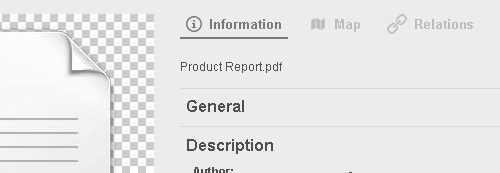
metadata: The standard view showing the information defined in the configured Record View Set
map: Shows a map with the item's geo-location if available, otherwise the configured default location
editor: Shows an editor with the fields configured in the View Set
relations: Shows a special view with all related items of the current item: 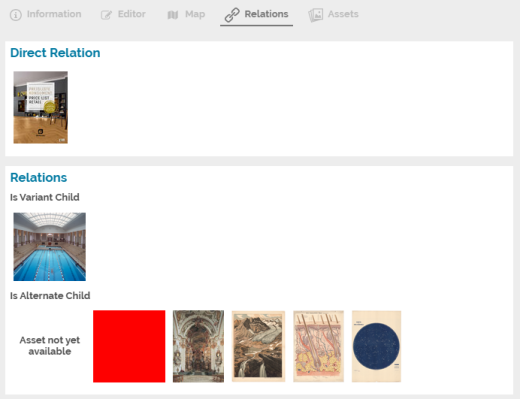
Related assets can be revealed as search result or added to the Collection Basket from here as well
assets: Shows a special view with all File fields of the current item: 
This view also displays the non-preferred assets stored in a File field and offers functions to change the preferred asset, rename an asset or download a non-preferred asset
Additional tabs can be restricted to guests or logged-in users and additionally to specific items matching the given query or specific users or groups.
The tab order can be changed with the order buttons on the right side of the table.
The metadata tab is the main tab and also used for fallback purposes and therefore cannot be disabled. |
