Table of Contents
Customizations
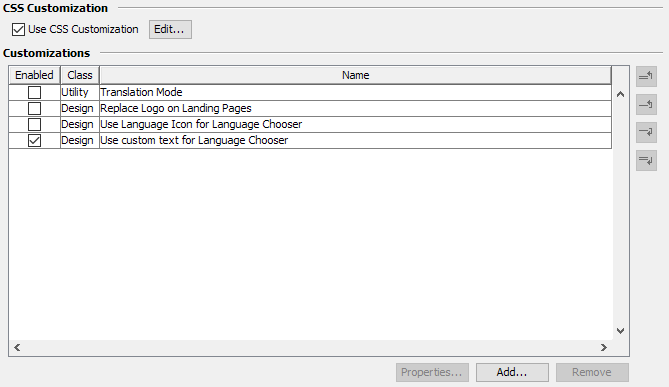
CSS Customization
Enable the option and use the editor to write custom css code that should be delivered with the standard instance css. This is the easiest way, for example to change colors, like in this example:
:root {
  --color-highlight-h: 206;
  --color-highlight-s: 100%;
  --color-highlight-l: 18%;

  --color-primary-back-h: 60;
  --color-primary-back-s: 11%;
  --color-primary-back-l: 96%;

  --color-secondary-back-h: var(--color-primary-back-h);
  --color-secondary-back-s: var(--color-primary-back-s);
  --color-secondary-back-l: 90%;
}
Additional Customizations
AWP supports customizations which apply changes to the web-application. Customizations can be added manually by putting them into the Tomcat/webapps/awp/customizations folder or by uploading a bundled customization into the list here.
Customizations list
This lists shows the customizations currently available. If a new customization is found in Tomcat/webapps/awp/customizations, it will be added to the list automatically but disabled.
Click Add to upload a new customization and Remove to delete the entire entry. To edit advanced options, click the Properties button.
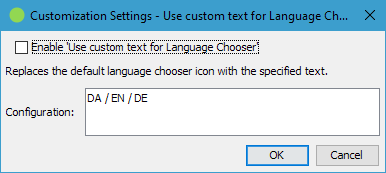
Here you can enable or disable the customization and change the configuration of the configured customization.
Saving changes will notify the running AWP instances to apply the enabled customizations to the live system. A Tomcat restart is not required.
Available Customizations
| Design | |
|---|---|
| Replace Logo on Landing Pages | This feature is useful, if your Welcome/Login Page has a different background than your header background in AWP. If you enable this customization, the logo_landingpage.svg will be used instead of logo.svg on the Welcome/Login page. |
| Use custom text for Language Chooser | Replaces the entire language chooser icon with the configured text from the customization's properties:  |
| Use Language Icon for Language Chooser | Replaces the default icon of the language chooser with another icon. |
| Show Language Chooser in Header | Moves the language chooser from the footer to the header area. |
| Blank Missing Values | Leaves fields without a value blank instead of showing “-” in the Thumbnail View and Report View. |
| External | |
| Tify for Preview Mode | Replaces the default IIIF viewer in the Preview View with Tify which works smoother. |
| Feature | |
| Hide Asset Thumbnails | Hides the asset image of every record carrying a configured tag: in gallery, thumbnail, table, report, maps, information and preview view and in the order list. Order confirmation e-mails embed no thumbnails at all while this is enabled, because the e-mail is not built per record. Enter the tag as <tag group id>:<tag id> as configuration, e.g. 3:42. The text shown instead of the image is the language key customization.hide.asset.thumbnail and stays empty until you define it, see the language settings. |
| Standard Image of Linked Object | Shows the standard image of a linked object for records that have no file in the file field configured for the Thumbnail View, Gallery View, Report View, Information View, Preview View and Maps View, and in empty file columns of the Table View. Enter the name of the field that links to the object as configuration, e.g. photographer. Records whose linked object has no standard image are shown as before. |
| Non-persistent Collection Basket | The collection basket is not saved and cleared when the session ends. Optionally restrict this to one user only by entering that user's login name as configuration.. |
| Structure | |
| Remove Collections Management | Removes the button to open the popup which shows the user collections. Optionally restrict this to one user only by entering that user's login name as configuration. |
| Utilities | |
| Translation Mode | Enable this to reveal all AWP language keys. This is needed for translating the available languages to your liking. See the language settings. When you have enabled this, open AWP in a new browser session and you should see the keys surrounded by question marks (not part of the key): 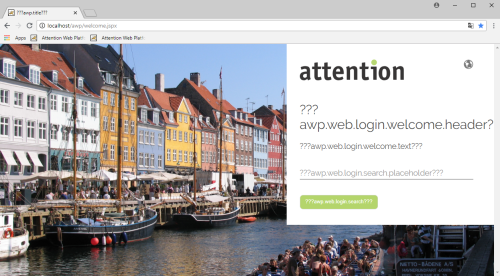 The default text for keys can then be changed in the properties dialog of a language: 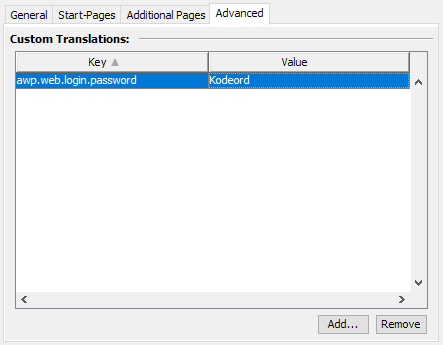 |