
Rename Asset
The Rename Asset scheduler job renames the original asset file on Fylr items based on a value an editor has entered into a designated text field. It is intended to be used as a lightweight workflow: an editor types the desired file name into the New Asset Name field on the items they want renamed, and on its next run the job picks those items up, renames the underlying asset and clears the field again. Open its configuration via the Scheduler admin module and pick Rename Asset as the job type.
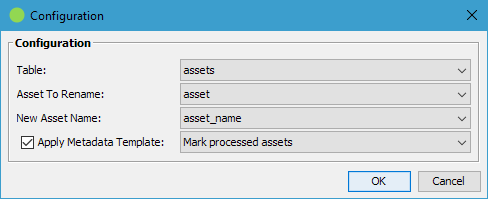
| Items To Process | |
|---|---|
| Selects the items and identifies which asset gets renamed to what. | |
| Table | The Fylr table containing the items to process. |
| Asset To Rename | The asset field on Table whose original file should be renamed. The drop-down lists every asset field on the chosen table. Only the original rendition is renamed — derived renditions (previews, thumbnails, …) are regenerated by Fylr from the renamed original and do not need to be touched. |
| New Asset Name | The text field on Table that holds the desired new file name for each item. The drop-down lists every text field on the chosen table. The value is read in the current session locale. The job only picks up items where this field is filled — items where it is empty are left alone. After a successful rename, the field is cleared again so the same item is not renamed again on the next run. |
The new file name is sanitised before it is applied (characters that are not legal in file names on the server's filesystem are removed) and the original file extension is preserved automatically, even if the editor entered the name without an extension or with a different one. An editor who types Holiday photo 2026 into New Asset Name for an item whose asset is currently IMG_4711.JPG ends up with Holiday photo 2026.JPG.
| Post-Processing | |
|---|---|
| Optional metadata template applied after each successful rename. | |
| Apply Metadata Template | When enabled, the chosen metadata template is applied to every item that the job renamed, just before the item is saved. The drop-down lists every template configured in the Metadata Templates admin module. If Apply Metadata Template is enabled but the configured template no longer exists when the job runs, the job will fail to run. |
What the job does when it runs
Every time the scheduler triggers the job it:
- Fails immediately when Apply Metadata Template is enabled but the configured template no longer exists, before any item is touched.
- Searches the configured table for items whose new asset name field is filled — that field being set is what marks an item for renaming.
- Renames the original asset of every such item, after stripping characters that are not valid in a file name and forcing the extension of the existing original. The extension cannot be changed by this job.
- Clears the new asset name field, applies the metadata template when one is configured, and saves the item. Clearing that field is what stops the item being picked up again on the next run.
- Reports an item that could not be processed and carries on with the next one.
An item whose asset field or new-name field is empty is skipped silently.