
Table of Contents
Collections
Introduction
AWP has broad support for Fylr Collections, including shared collections. To work with collections a user must login first to get access to the collections available to him.
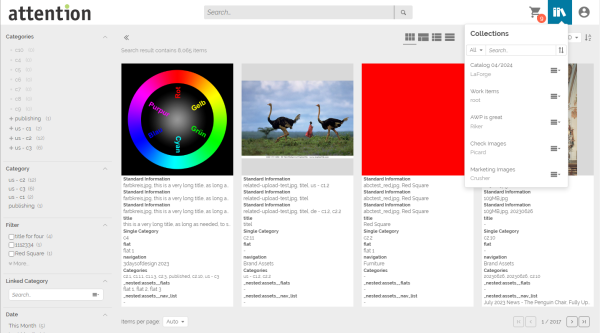
The collections button is not available if the user has no accessible collection and no permission to create a new collection.
Collection Menu
A user can work with collections after logging in. The menu-bar offers a new icon which shows a popup with the collections available. The collections are shown as the tree they form in Fylr: only the top-level collections are listed, and a collection containing sub-collections has a plus sign in front of it which expands them; the minus sign collapses them again. A collection whose parent is a folder or is not accessible to the user is shown under its nearest accessible parent, or at the top level.
The list can be filtered by collection type and by collection or creator name, and sorted by creation date, modification date, name or creator with the sort button next to the search field. Both keep the tree: a matching sub-collection is shown together with its parents, and the sort order is applied within each level.
Besides the name the list also shows the type of collection, the date of last modification and the creator. On the right side of each collection is a small menu button which will offer more options.
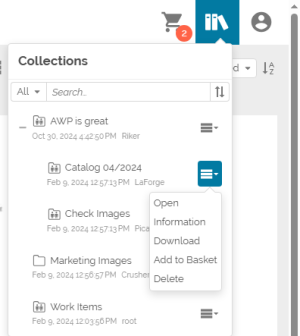
| Open | Clicking the collection name or choosing the Open option in the menu will replace the search result with the collection content. The currently loaded collection is also visualized with a changed background color. Clicking the collection name again will unload the collection. |
| Information | Displays a dialog with the collection properties. For shared collections this also allows the user to change the expiration and embargo date and the users the collection is shared with. |
| Download | Choosing this option will download the assets of the collection directly without affecting the collection basket. |
| Add to Basket | Adds all items of the collection to the collection basket. |
| Delete | Allows the user to delete the collection, but brings up a confirmation dialog before finally deleting the collection. |
Managing items of a Collection
Add items
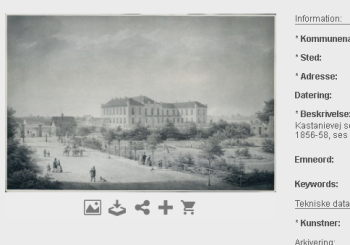
There are several ways to add items to a collection. Opening the information view of an item shows a plus sign to add this single item to a collection:
The collection basket also shows the additional button Add to Collection to add all contained items to a collection:
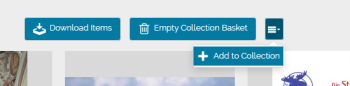
Clicking one of these brings up a dialog where the user can choose between adding the items to an existing collection or to create a new collection.
Remove items
After opening a collection, the information view for an item offers a new Minus button to remove this item from the current collection.
In addition the collection basket also shows a new button to remove all contained items from the current collection:
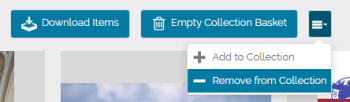
After selecting one of these buttons the according confirmation dialog appears to ensure the user really wants to remove the items from the currently loaded collection. Clicking the Remove button closes the dialog and applies the change.