
Table of Contents
Settings Backup
The Settings Backup plugin writes the FJC settings stored on a Fylr server into a single file and restores them from it. After installing the plugin a node for the Settings Backup is available under the server node; its panel shows the server the settings belong to and offers the two actions Backup… and Restore…, which are also available in the Tools menu while the node is selected.
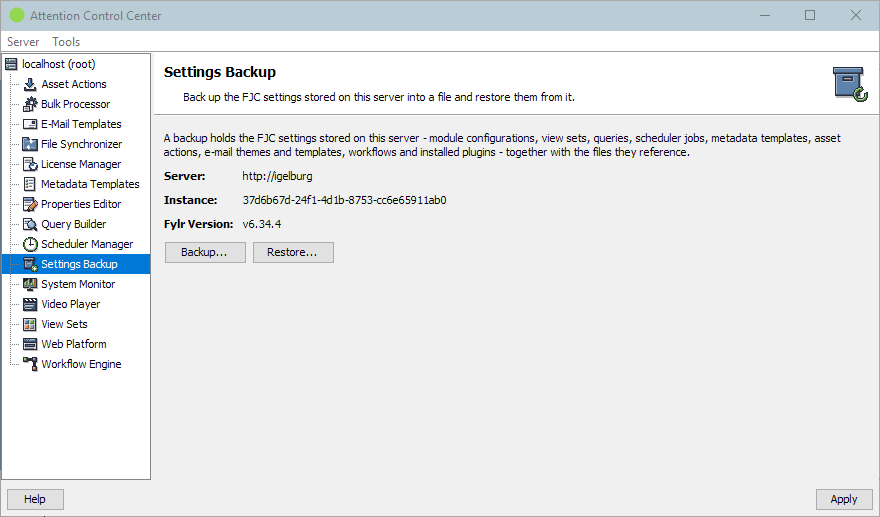
The FJC settings are everything the Attention products store on the Fylr server: the module configurations (AWP, AFS, AVP, AMS, the workflow engine, licenses, …), view sets, queries, scheduler jobs, metadata templates, asset actions, e-mail themes and templates, workflows and the list of installed plugins. Files these settings reference - AWP logos and start pages, e-mail attachments, plugin resources - are stored in the backup as well, so a restore works even after Fylr has cleaned such a file up because nothing referenced it any more.
A backup does not contain the data model, the records or the assets of the server, nor the settings Fylr itself stores (users, groups, pools, tags, the base configuration). Use Fylr's own backup for those.
Backup
Backup… reads the FJC settings from the server and shows the areas it found as a tree, with one entry per module below the module area. Every entry is preselected; untick what should not be part of the file. Ticking or unticking an area applies to everything below it, and an area with only some of its modules ticked is shown partially ticked. After confirming, choose the target file - the name defaults to fjc-prefs-backup_<date>_<time>.zip and the last used folder is remembered.
A fully ticked area is written as a whole; a partially ticked module area writes only the ticked modules, each on its own. A file that holds only single modules can later restore only those modules, never the whole module area.
Restore
Restore… asks for a backup file, reads it and compares every entry with the FJC settings currently stored on the server. The dialog shows when and from which server the backup was taken and its entries as the same tree; the entries that differ from the server are preselected, unchanged ones are shown greyed out in italics.
Restoring replaces the selected settings on the server with the content of the backup, it does not merge them. A fully ticked area replaces every entry below it - restoring the whole module area deletes modules that were created after the backup was taken. To bring back single modules, tick only those; the module area then shows as partially ticked and only the ticked modules are replaced. Apply or discard pending changes in the other ACC nodes before restoring, otherwise applying them afterwards overwrites the restored settings again.
By default a snapshot of the settings about to be replaced is written next to the backup file first (<backup name>_before-restore_<date>_<time>.zip). Restoring that snapshot returns the server to the state it had before. Untick the option in the dialog to restore without a snapshot.
A backup can only be restored into the Fylr instance it was taken from: view sets, queries and metadata templates reference internal IDs that differ between instances. The dialog warns when the instance does not match and requires an explicit confirmation; only do this for an instance that was re-created from the same database.
Should a restore fail half-way, the error message states how many areas were already written. The areas written before the failure stay restored.
Scheduled backups
The Settings Backup scheduler job writes a complete backup into a folder on a schedule and keeps a configurable number of the newest files.